
Testing with Mocks
Use our Mocked Vehicles UI to interact with mocked vehicles.
Idle State
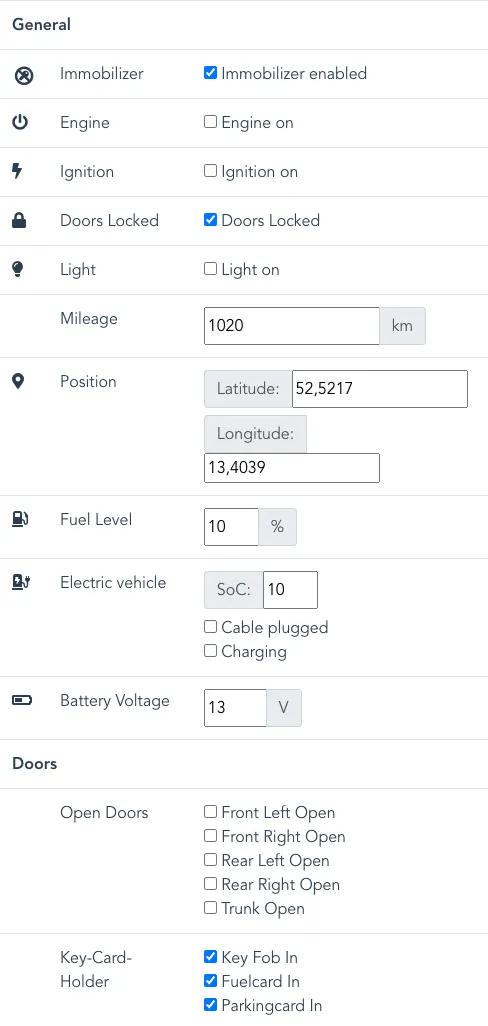
Section titled “Idle State”Before starting a rental, make sure your selected mock is in a clean idle state (doors closed, engine off, doors locked, immobilizer enabled):
Start Rental
Section titled “Start Rental”To simulate a customer starting and completing a trip, first confirm your mock is in the idle state, then follow these steps after calling rental/start:
- Uncheck Immobilizer enabled
- Uncheck Doors Locked
- Check and then uncheck Open Doors: Front Left Open — this simulates the user entering the vehicle and prevents auto-cancellation of the rental
- Turn on the engine by checking engineOn
- Optionally update the vehicle’s GPS position to simulate driving
- Turn the engine off by unchecking engineOn
End Rental
Section titled “End Rental”The rental/end endpoint validates all end rental criteria and reports any open criteria synchronously.
Once you receive an OK response from rental/end and an ENDING status from the customer status endpoint, re-check Immobilizer enabled and Doors Locked to emulate the vehicle locking securely:
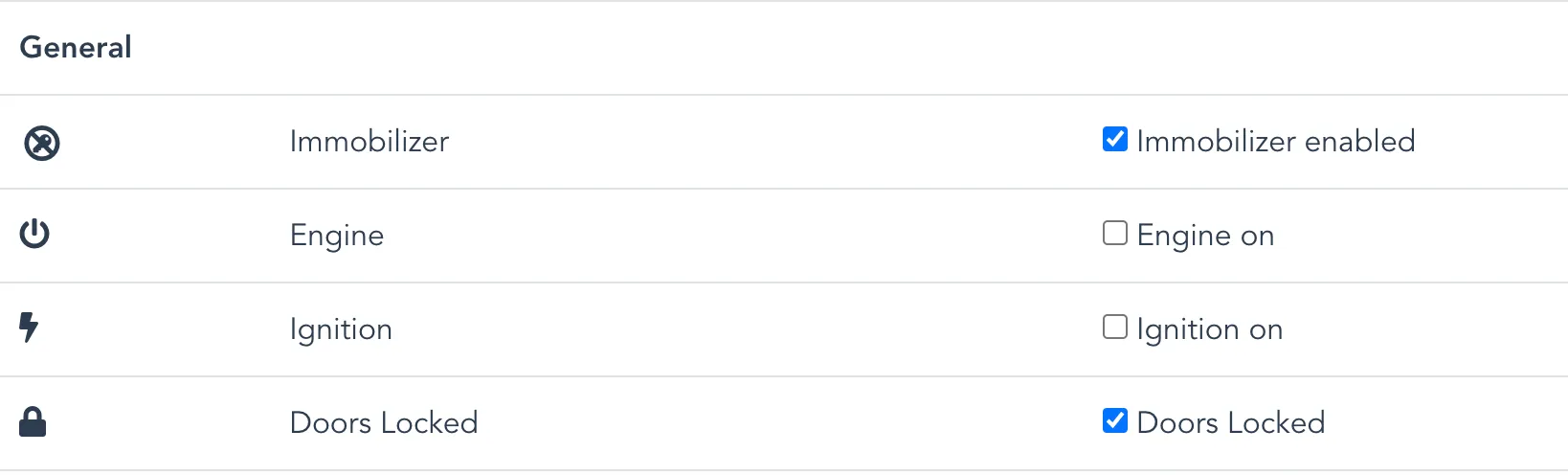
After this step, the customer status endpoint transitions back to IDLE.